SoccerShift Admin Guide

SCOREKEEPER ACCESS

To manage schedules and report scores, you must log in via the official SoccerShift Admin portal: admin.soccershift.com

Who Has Access: Managers (or head coaches if no manager is listed) were sent an invite directly from SoccerShift.

If you need access or cannot locate the invite, please email registrar@nwleaguesandevents.com.

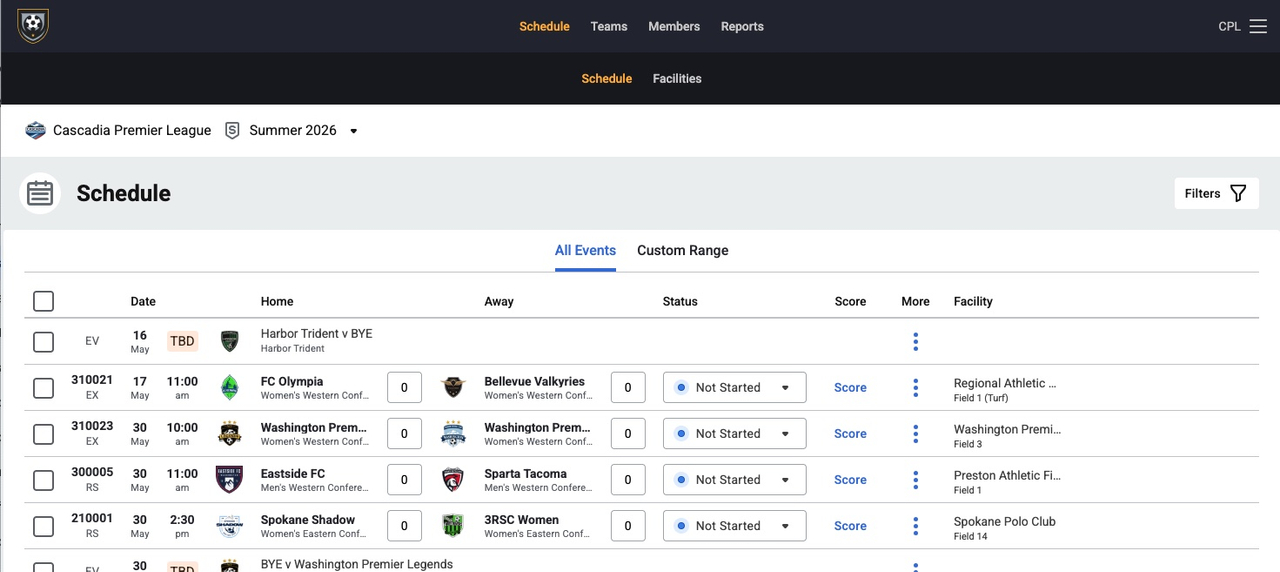
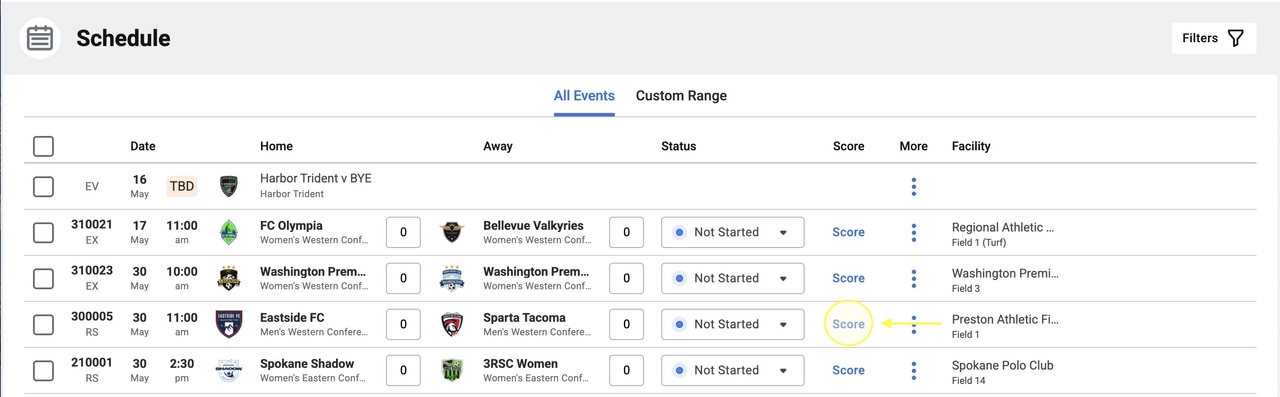
Once logged in, you will see the dashboard as shown below:

MANAGE SCHEDULE DETAILS

HOME TEAM RESPONSIBILITY: The Home Team should update only their own home match details.

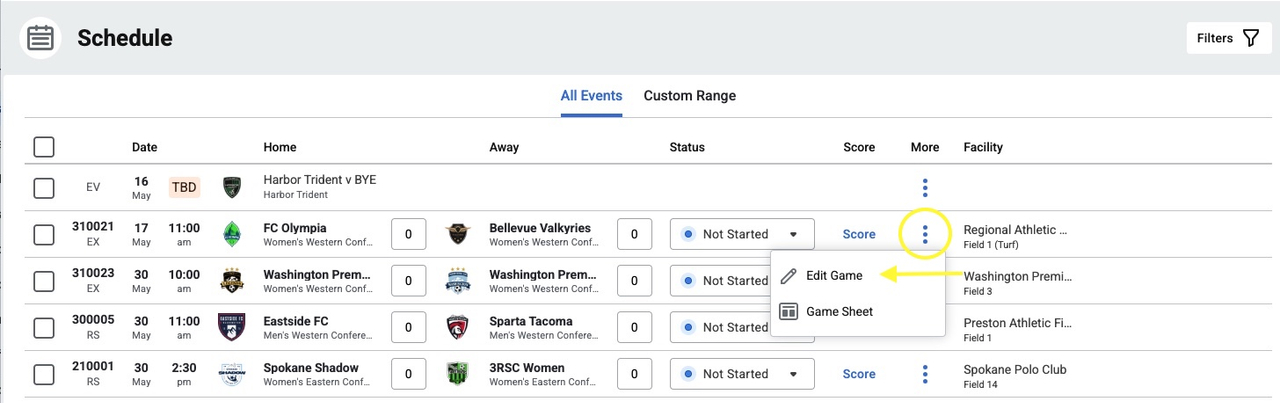
To update your match, click on the 3 vertical dots next to the game, then click "Edit Details."

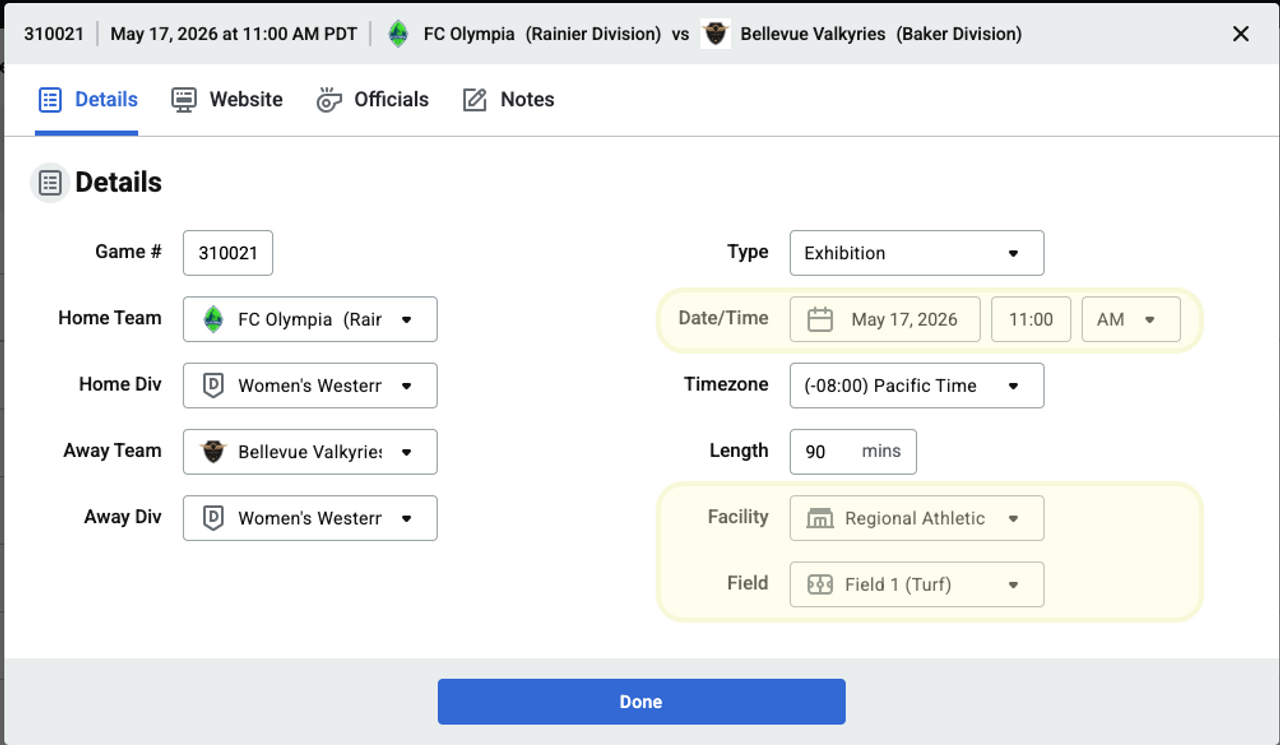
From this screen, you can edit the Date, Time, and update or add the Facility and Field.

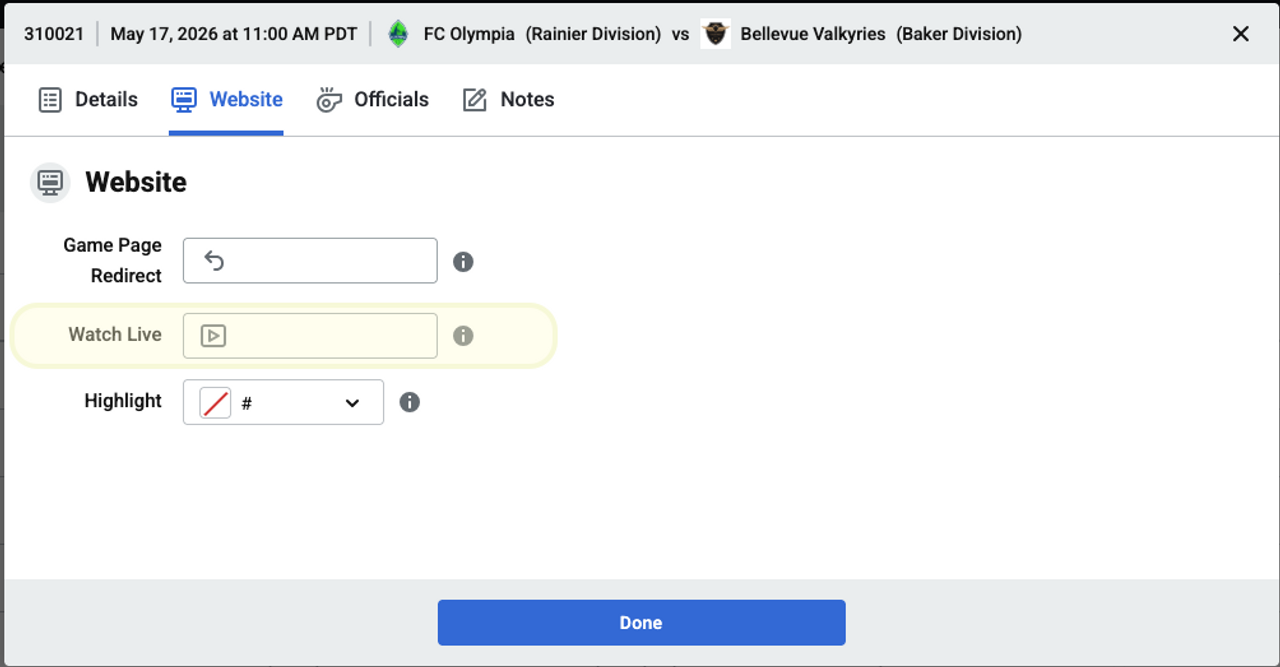
Pro-Tip: You can also click on "Website" to add a link to your team's livestream if you have one available for that match.

SCORING YOUR GAME

SCORING YOUR GAME

Once the match has concluded (or as it progresses), you can begin the reporting process directly from your dashboard.

Step 1: From your initial landing page, locate the specific match and click on the "Score" button to start the process.

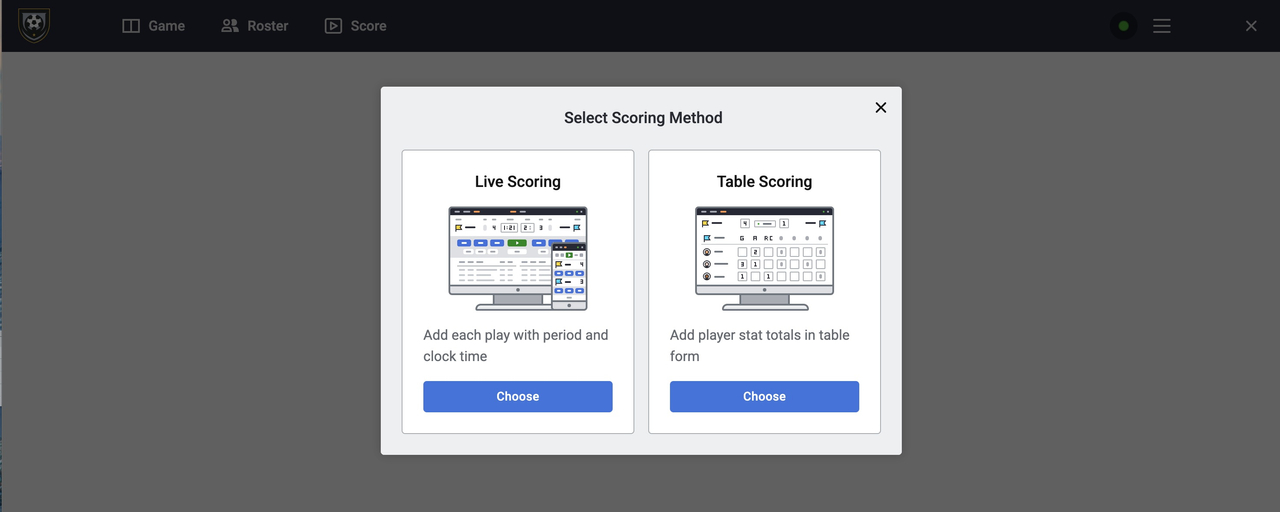
Step 2: You will be prompted to select your Scoring Method. Please select the option that best fits your reporting needs:

• Live Scoring: Add each play individually, including the specific period and clock time.
Learn more about Live Scoring ›

• Table Scoring: Add player stat totals in a simple table format.

Learn more about Table Scoring ›

RECOMMENDED: We recommend using Table Scoring for post-match reporting, as it is the most efficient way to ensure all goals, assists, and cards match your physical Match Report.

TABLE SCORING WORKFLOW

Phase 1: Game Details & Public Notes

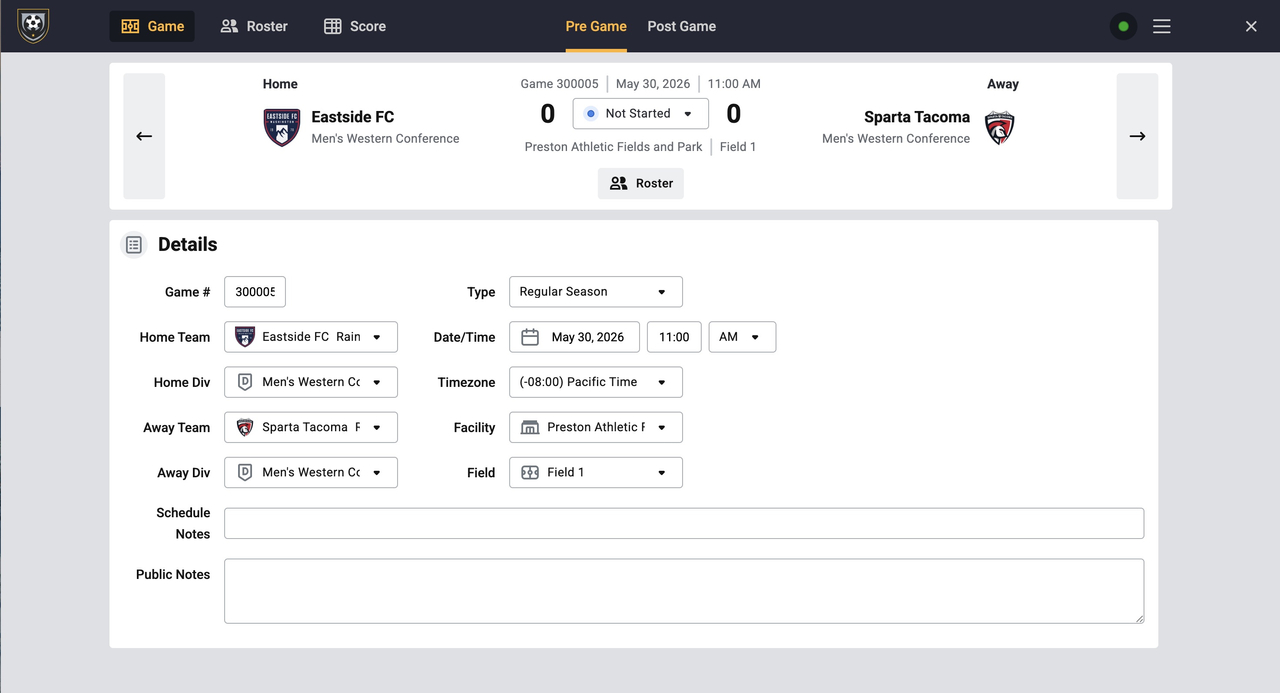
The first screen you will see is the Pre-Game screen. Here, you can add "Public Notes" that will be visible on the league website (e.g., ticket costs, gate entry instructions, or livestream details).

Phase 2: Roster Management

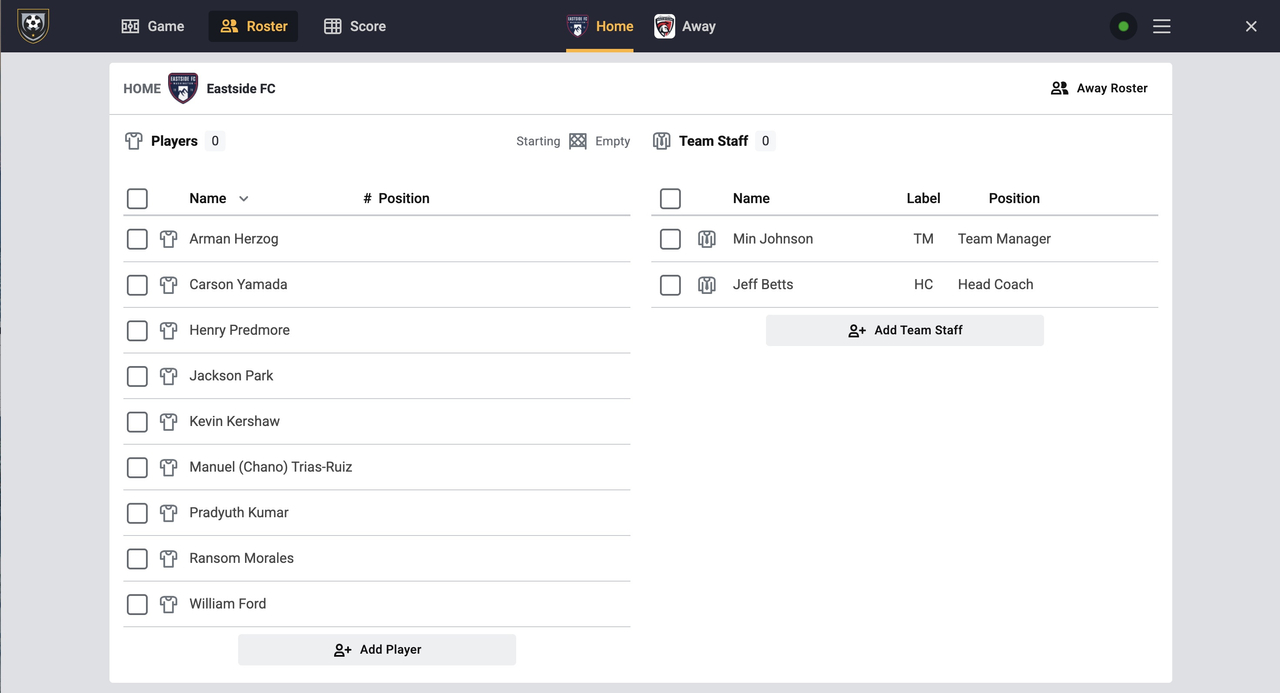
Select "Roster" from the top menu. Both teams must mark their active players for the match, update jersey numbers, and assign positions. Only marked players will be available for stat entry later.

IMPORTANT: Only players on the Master Roster should be added or marked as active. Each team is limited to a maximum of 22 active players for the match.

Phase 3: Entering Stats

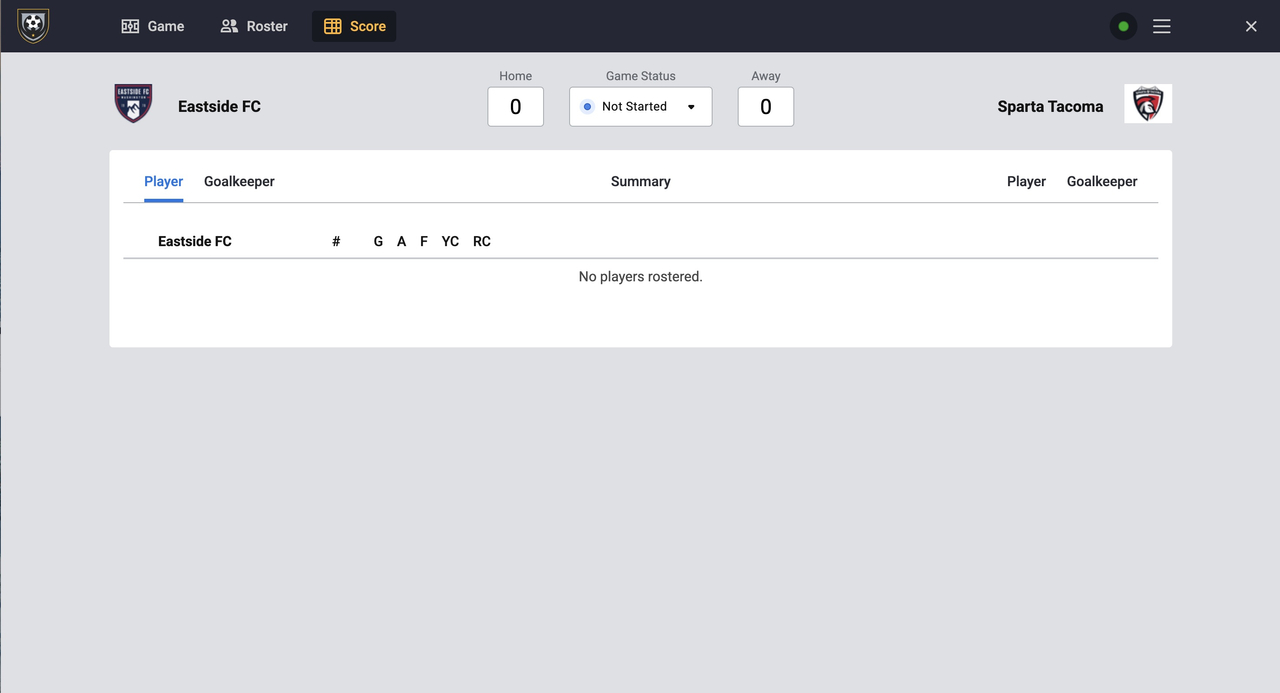
Select "Score" from the top menu. This is where you assign individual stats to players, including Goals, Assists, Saves, Yellow Cards, and Red Cards.

Note: The rostered players you set in Phase 2: Roster Management will be listed. The image below is provided as a general idea of what you will see. 

Phase 4: Post-Game Finalization

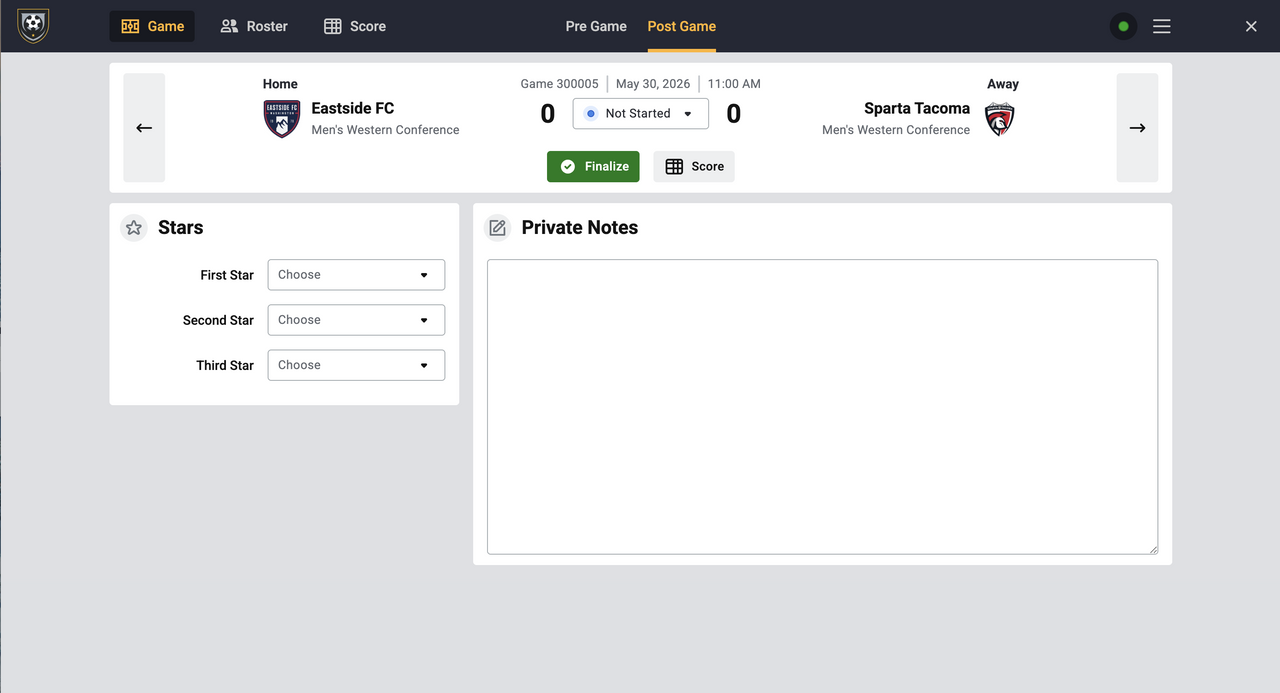
Click on "Post Game" to finalize. You may select "Star Players" for the match and add any private notes intended for League Administration review. Click "Finalize" to submit the report.


For additional assistance, please refer to the SoccerShift Table Scoring Documentation.

ADDITIONAL SCORING RESOURCES
Interested in Live Scoring?

While Table Scoring is recommended for post-match reporting, teams wishing to provide real-time updates (play-by-play) for their fans can utilize the Live Scoring method.

If you wish to use this method, please reference the specific Live Scoring How-To Guide provided by SoccerShift for a step-by-step walkthrough:

 View SoccerShift Live Scoring Guide › 

Still having trouble? For technical issues with your SoccerShift account or the scoring interface, please reach out to registrar@nwleaguesandevents.com.